

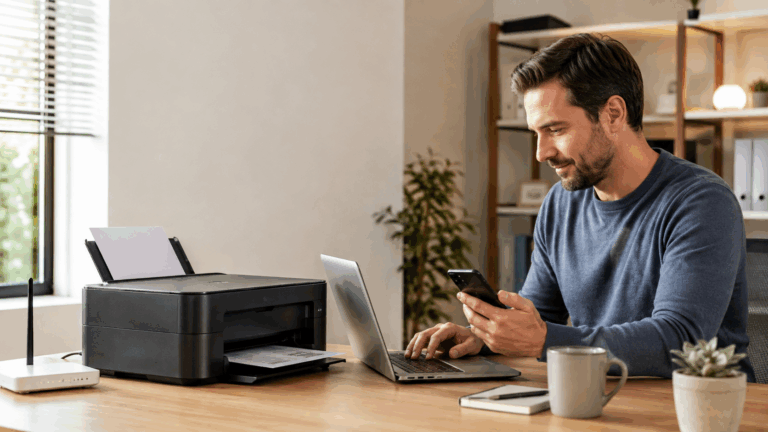
A printer that refuses to connect can make a simple five-minute task feel much more complicated.
Your phone is online. Your laptop is connected. The router appears to be working normally. Yet the printer keeps showing offline or cannot find the home WiFi network.
The good news is that many wireless printers can be connected without calling a technician.
For anyone searching how to connect printer to wifi, the process usually involves selecting the correct home network, entering the WiFi password and completing setup through the printer screen or manufacturer’s app.
The important part is knowing when the problem is the printer—and when the real issue is your home WiFi.
Fix My WiFi helps Dubai households when printer setup fails because of weak coverage, router changes, mesh WiFi or network configuration.
Quick Answer: How Do You Connect a Printer to WiFi?
For most wireless printers, try this process:
- Turn on the printer.
- Connect your phone or laptop to the home WiFi.
- Open the printer’s wireless setup menu or manufacturer’s app.
- Select your home WiFi network.
- Enter the WiFi password.
- Complete the setup.
- Add the printer to your laptop or phone.
- Print a test page.
The exact menu depends on the printer brand and model.
First, Check Whether the Printer Supports WiFi
Not every printer has wireless networking.
Look for:
- A WiFi symbol
- Wireless button
- Network menu
- WiFi setup option
- Wireless setup information in the printer manual
If the printer supports only USB or Ethernet, you will not be able to connect it directly to WiFi without additional equipment or features.
For a modern wireless printer, WiFi setup is usually available through the printer controls or its companion app.
Make Sure Your Home WiFi Is Working
Before troubleshooting the printer, check the network.
Take your phone or laptop to the same room and confirm that:
- WiFi connects normally
- Websites load
- Signal is reasonably strong
- The correct network name appears
If every device struggles in that room, the printer may not be the real problem.
Weak home-office or bedroom coverage can make a printer repeatedly disconnect even after successful setup.
Fix My WiFi tests the printer where it is actually used rather than assuming that good WiFi beside the router means good coverage everywhere.
Find the Correct WiFi Name and Password
You will need the exact home network name and password.
Be careful if your property shows several networks, such as:
- HomeWiFi
- HomeWiFi-Guest
- HomeWiFi-5G
- HomeWiFi-EXT
- A separate mesh network
For normal home printing, connect the printer to the same trusted network used by your laptop or phone.
If the printer is connected to one network and your laptop is connected to an isolated guest network, they may not be able to communicate.
This is one of the most common issues when learning how to connect printer to wifi.
Method 1: Use the Printer’s Touchscreen
If your printer has a display, look for a menu such as:
Network, Wireless, WiFi, Wireless Setup Wizard or Network Setup.
Select your home WiFi and enter the password.
Wait for the printer to confirm that the connection is successful.
Then use your laptop or phone to find and add the printer.
This is often the easiest method because everything can be completed directly from the printer.
Method 2: Use the Printer Manufacturer’s App
Many printer brands provide apps for wireless setup.
The app can help your phone or computer discover the printer and send the home WiFi details to it.
The general process is:
- Connect your phone to home WiFi.
- Turn on the printer.
- Put the printer into wireless setup mode if needed.
- Open the manufacturer’s printer app.
- Choose Add Printer or Set Up Printer.
- Select your WiFi.
- Enter the password.
- Complete setup.
If the app cannot find the printer, move closer to the printer and router before trying again.
Method 3: Use WPS
Some printers and routers support WPS, or Wi-Fi Protected Setup.
WPS can allow the printer to join the network without manually entering the password.
The usual process is:
- Activate WPS mode on the printer.
- Press or enable WPS on the router.
- Allow the devices to pair.
- Confirm that the printer connects.
Not every router or printer supports WPS, so do not worry if the option is unavailable.
The manufacturer’s app or manual wireless setup usually provides an alternative.
What If You Recently Changed Your WiFi Password?
The printer will usually continue remembering the old credentials.
It does not automatically know that your home password has changed.
You may need to put the printer back into wireless setup mode and enter the new password.
This is especially common after:
- Changing router passwords
- Moving home
- Replacing an ISP router
- Installing mesh WiFi
- Renaming the home network
If the printer worked perfectly before the password change, reconnecting it is usually more appropriate than resetting the entire printer.
What If You Installed a New Router?
A new router often means a new WiFi network name or password.
Your printer may still be searching for the old network.
To reconnect it:
- Open the wireless setup
- Select the new network
- Enter the new password
- Complete setup
- Re-add the printer on your computer if necessary
If the new router uses the same WiFi name and password as the previous one, the printer may reconnect automatically, but this is not guaranteed.
Why Can’t the Printer Find My WiFi?
Possible causes include:
- Weak signal
- Printer too far from the router
- Old network settings stored
- Wrong WiFi network selected
- Printer not in setup mode
- Router was recently changed
- Mesh WiFi is configured incorrectly
- Printer does not support the current wireless configuration
Move the printer closer to the router temporarily.
If the WiFi appears there, weak coverage in the printer’s normal location may be the issue.
Fix My WiFi can identify whether router placement or mesh coverage is causing repeated printer problems.
Why Does the Printer Say Connected but My Laptop Cannot Find It?
The printer may have joined WiFi successfully while the laptop is unable to discover it.
Check whether both devices are on the same network.
Problems often occur when:
- Laptop is on guest WiFi
- Printer is on another router
- Old printer software remains installed
- Mesh configuration separates devices
- Computer remembers an old printer connection
Try removing the old printer entry from your laptop and adding the printer again.
If another phone or laptop can print successfully, focus on the device that cannot find it rather than resetting the entire network.
Should You Connect a Printer to Guest WiFi?
Usually not.
Guest WiFi is often designed to stop connected devices from seeing one another.
That is useful for visitors, but not ideal for a household printer that needs to communicate with laptops and phones.
For normal printing, the printer should generally use a trusted network where authorised devices can reach it.
Can Mesh WiFi Work With a Wireless Printer?
Yes.
Printers can work normally with mesh WiFi when coverage and network configuration are correct.
Problems may happen if:
- Mesh nodes are too far apart
- Printer is in a weak room
- ISP router and mesh system both broadcast separate networks
- Old extenders are still operating
- Device isolation is enabled
Fix My WiFi can simplify the network and make sure the printer and household devices are using compatible connections.
Should You Factory Reset the Printer?
Not immediately.
A full reset may erase other printer configuration.
Before resetting, try:
- Re-entering the WiFi password
- Using setup mode
- Restarting the printer
- Moving it closer to the router
- Removing and re-adding it on the laptop
Reset the wireless settings only when the printer is permanently stuck on an old network or when the manufacturer’s setup process requires it.
When Do You Actually Need a Technician?
You may need professional help if:
- Printer connects only beside the router
- Printer repeatedly goes offline
- Several printers have the same issue
- Home uses multiple routers or mesh nodes
- Laptop and printer cannot see each other
- Printer works on one floor but not another
- WiFi itself is unstable
At that point, the problem may be the home network rather than the printer.
Fix My WiFi can test the router, mesh system, printer location and connected devices before recommending any replacement equipment.
FAQs: Connecting a Printer to WiFi
1. How to connect printer to wifi at home?
Open the printer’s wireless setup or manufacturer’s app, select your home network, enter the WiFi password and complete the setup.
2. Can I connect a printer to WiFi without a technician?
Yes. Most modern wireless printers can be connected using their display, setup app or WPS.
3. Can I connect my printer to WiFi using my phone?
Yes, many printer brands provide mobile apps that can guide you through wireless setup.
4. Why can’t my printer find my WiFi network?
The printer may have weak signal, old network settings, an incorrect wireless configuration or may not be in setup mode.
5. Why did my printer stop connecting after I changed my WiFi password?
The printer still remembers the previous password and needs to be updated with the new credentials.
6. Why did my printer stop working after I installed a new router?
The printer is probably still trying to connect to the old network and needs the new WiFi details.
7. Why is my printer connected to WiFi but showing offline?
Your laptop may be on another network, using an old printer configuration or unable to communicate locally with the printer.
8. Should I put my printer on guest WiFi?
Usually not. Guest WiFi can prevent laptops and printers from communicating with each other.
9. Can a wireless printer work with mesh WiFi?
Yes, provided the printer receives stable coverage and the mesh network allows local device communication.
10. Can Fix My WiFi help if my printer keeps disconnecting in Dubai?
Yes. Fix My WiFi can diagnose weak WiFi, router configuration, mesh issues and device communication to determine why the printer repeatedly goes offline.
Connect the Printer Yourself—But Know When the WiFi Is the Real Problem
Learning how to connect printer to wifi is usually straightforward: choose the correct network, enter the password and complete the printer’s wireless setup.
If the printer connects successfully and stays online, there is usually no need to call anyone.
But if it works beside the router and fails in your office, repeatedly disappears from laptops or cannot communicate across a mesh network, the issue may be your WiFi rather than the printer.
Fix My WiFi provides free on-site WiFi assessments and printer connectivity troubleshooting across Dubai, including router configuration, mesh optimisation and real-room testing.
Call 800 4824 or +971 50 744 5606, or message fixmywifi.ae on Instagram for WiFi support.