

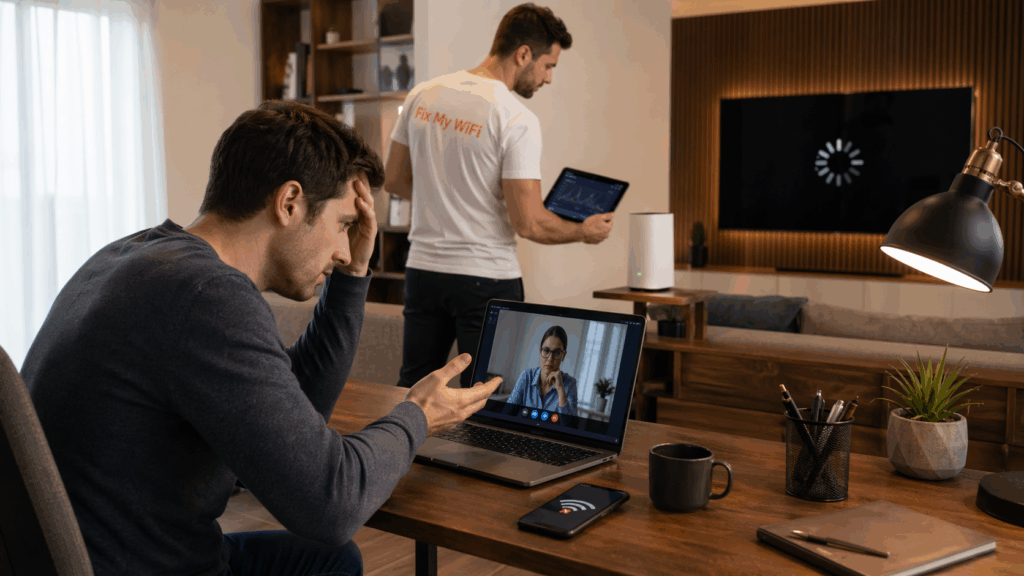
Nothing exposes a weak network faster than a live call.
You can browse all day and think your WiFi is fine. Then the moment you jump on Zoom or Teams, the audio goes robotic, the video freezes, and you start apologising mid sentence. If you’ve just completed wireless network installation in Dubai, you don’t want “fast near the router”. You want stable calls in the room where you actually work.
This guide covers the most useful call stability settings and checks, written in plain language, plus what to expect cost wise if you’re comparing Wifi installation cost UAE or Wifi technician cost Dubai quotes for this kind of work.
Quick micro line: Calls don’t need huge speed. They need calm, predictable WiFi.
First, what “stable calls” actually require
A stable call needs:
- consistent response time
- stable upload
- low jitter
- strong signal quality at your desk
So the best settings are the ones that reduce delay spikes and keep your work zone from operating on weak signal quality.
Start with the real foundation: Your work zone coverage
Before changing settings, confirm this:
- calls are stable near the router
- calls are also stable at your actual desk
If calls improve when you move closer to the router, no setting will fully fix it until coverage improves in the work zone.
If your solution is “sit closer to the router”, the network is underbuilt for your desk.
Best settings and setup choices for call stability
Router menus vary, but these are the settings areas that matter most after wireless network installation in Dubai.
1) Turn on traffic prioritisation if your router supports it
Look for:
- QoS
- adaptive QoS
- traffic prioritisation
- video conferencing mode
What it does:
It helps your call traffic stay smooth even when someone else is streaming, gaming, or uploading in the background.
This is one of the most practical settings because it reduces the delay spikes that destroy call quality. It doesn’t increase speed. It protects stability.
2) Use the best band for your work device
Many routers broadcast two bands. One is usually faster and cleaner but shorter range. The other is longer range but often more crowded.
For stable calls:
- keep your work laptop on the cleaner faster band when signal is strong
- if your desk is far from the router, don’t force the faster band if it becomes weak, strengthen coverage instead
This is a classic Dubai home issue: the laptop at the desk is far away, so the connection becomes unstable under load.
3) Keep your network name simple and avoid multiple similar networks
Calls become unstable when devices hop between:
- old extenders
- duplicate routers
- multiple WiFi names that look the same
A clean setup after wireless network installation in Dubai should be:
- one main network for daily use
- guest network if needed
- no leftover repeaters broadcasting in the background
Network clutter creates sticky roaming and random pauses that feel like call glitches.
If your WiFi list looks crowded, your network is probably crowded too.
4) Reduce interference impact in towers
In high density buildings, stability at night can drop because of neighbour WiFi congestion.
Helpful settings and choices include:
- stable channel selection rather than constantly jumping around
- avoiding overly wide channels in crowded buildings
- improving coverage so your work device has strong signal quality and fewer retries
This is why “fast speed test” doesn’t guarantee stable calls. Calls suffer first when interference creates timing spikes.
5) Keep router placement and airflow correct
This isn’t a setting, but it acts like one.
For stable calls, avoid:
- router inside cabinets
- router behind TV units
- router placed low on the floor
Overheating creates instability that shows up during long calls.
Place it:
- in open air with airflow
- at shelf height
- away from heavy blockers like metal and dense furniture
6) Separate guest devices from your work devices
If your home has visitors or home staff connecting regularly, keep guest traffic off your main network.
A guest network helps because it:
- reduces unpredictable traffic on your main network
- improves security and control
- keeps your work laptop from competing with random devices
If you work from home, this is a simple upgrade that often improves call stability.
7) Validate calls under real household load
A proper installation isn’t finished until it passes a real life test.
After changes, test:
- a short call from your desk
- while someone streams in the home
- ideally during evening peak once
If it only works when the house is quiet, the setup needs more stability work.
The real test is the night call, not the afternoon demo.
What should be included when you pay for call stability work
If your main complaint is call drops and unstable meetings, you’re not paying for a “WiFi name change”. You’re paying for testing and stability.
A good technician should:
- test the call at your desk, not only beside the router
- find out if issues are location based or load based
- strengthen coverage in the work zone if needed
- reduce the impact of uploads and guest traffic
- retest with a real call before finishing
This is where Wifi installation cost UAE and Wifi technician cost Dubai can vary. Quotes differ when scope differs. A quick setup quote is cheaper, but it often doesn’t include real zone testing and stability validation.
Quick micro line: Cheaper installs often look fine for five minutes, then fail in the room you actually work.
Why WiFi installation cost UAE and WiFi technician cost Dubai vary for call focused setups
Here’s what increases cost for call stability work:
- room based testing across work zones and far rooms
- coverage improvements in the office zone
- tuning for interference in dense towers
- cleanup of old extenders and duplicate routers
- extra time spent validating under load
A simple setup is cheaper. A stable call setup is more valuable, because it prevents repeat visits and daily frustration.
A short case style example
A Dubai apartment had great speed tests in the living room, but calls dropped in the study after 8pm. The router was near the entrance and the study was behind multiple partitions. The household thought the ISP was the issue.
The fix was strengthening signal quality in the study and enabling sensible traffic prioritisation so calls stayed stable while others streamed. After retesting with a real call during evening hours, the dropouts stopped without changing the internet plan.
That’s what stable calls should feel like.
FAQs
Q1: What is the best setting for stable calls after wireless network installation in Dubai?
A: Traffic prioritisation or QoS is usually the biggest win because it protects call traffic from delay spikes when the home is busy.
Q2: Why do calls fail even when speed tests look good?
A: Calls need stable timing and upload, not just download speed. Weak signal quality, interference, and busy hour load create jitter and drops.
Q3: Should my laptop use the faster band for calls?
A: Yes when signal is strong at your desk. If the desk is far from the router, strengthen coverage rather than forcing a weak connection.
Q4: Why does router placement affect call stability?
A: Poor placement creates weak zones and increases retries. Overheating from cabinets can also cause instability during long calls.
Q5: How does guest WiFi improve call stability?
A: It reduces unpredictable traffic on the main network and keeps work devices from competing with visitor devices.
Q6: Why does Wifi installation cost UAE vary for call stability setups?
A: Because scope varies. Call focused setups need room testing, stability tuning, and coverage improvements, not just basic setup.
Q7: Why does Wifi technician cost Dubai vary so much?
A: Some visits are basic setup. Others include diagnosis, tuning, cleanup, and verification in the work zone. More time and testing often means better results.
Q8: When should I call a technician again after installation?
A: When calls still drop in the work room, when issues worsen at night, or when you want the setup tested and stabilised under real load.
Want calls that stay stable where you actually work
If you’ve completed wireless network installation in Dubai but your calls still aren’t stable, Fix My WiFi can help. We start with a free on site assessment, test your actual work zone, then provide an instant transparent quote after assessment with a clear plan to stabilise calls.
Call 800 4824 or +971 50 744 5606, or message fixmywifi.ae on Instagram to book.